


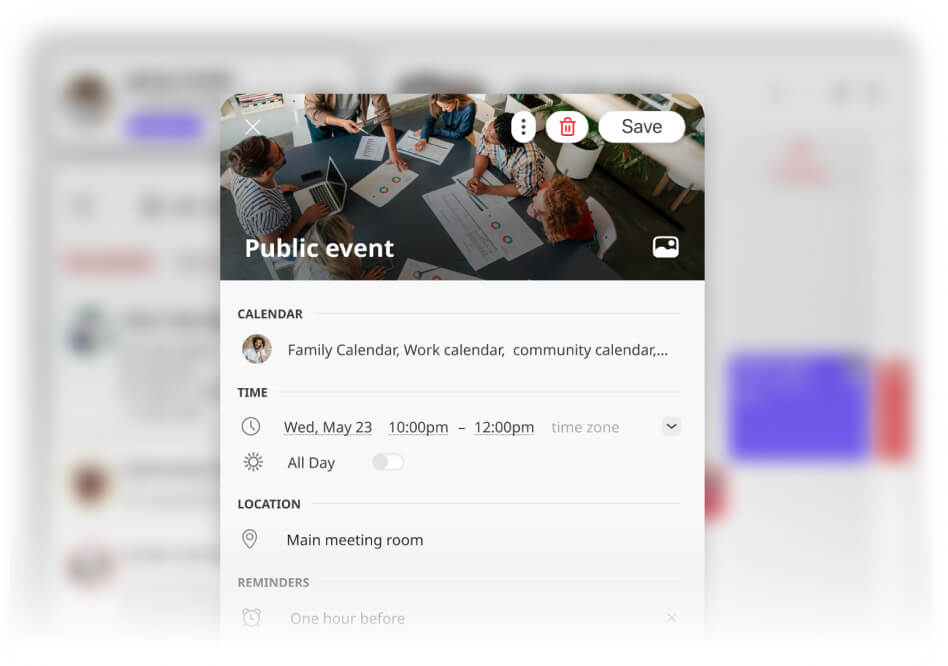
Managing a busy schedule for a team, community, or family means keeping track of a high volume of events. On standard calendar grids, this data remains streamlined to keep your workflow clean. However, when you or your members tap on an event to review its details, or when you switch your calendar to the media-rich Cards View, visual recognition becomes essential.
To solve visual fatigue and help you organize more intuitively, GroupCal is introducing Event Cover Images. Starting today, you can assign high-quality visual landmarks to your events.
This update keeps your standard day-to-day grids perfectly organized and clutter-free, while providing a visually engaging, modern experience on the Cards View and within individual event detail popups.
What Are Event Cover Images?
Event Cover Images allow you to upload a cover image to an event. Once a cover image has been added, it becomes part of the event itself, serves as its main visual representation, and helps visually distinguish it from the rest of your schedule. Whether you’re using a family photo, team logo, church graphic, or company branding, each image adds context and personality to your events.
Where Are Cover Images Displayed?
After an image has been added, GroupCal will display it throughout supported views.
When the calendar is in the Cards View mode, cover images become part of the event card itself, creating a more visual and modern experience. Instead of seeing only text, members can quickly identify events through images that represent the activity. The cover image is also displayed on the event details screen, giving each event a more polished and personalized look while making important information easier to recognize.
Why Does Visual Recognition for Events Matter?
The human brain processes images exponentially faster than text. In cognitive design, this is known as reducing cognitive load. When you tap on an event to read its description, or when you browse a visual event schedule, a cover image, like a sports team logo, a company icon, or a holiday graphic, acts as an immediate “visual anchor.”
Your brain recognizes the shape and color of that image in milliseconds, allowing you to instantly absorb the context of the event without needing to read the description line-by-line. This speeds up scheduling coordination and creates a highly intuitive navigation experience.
Examples include:
- A beach photo for a family vacation.
- A team logo for sports practices.
- A holiday graphic for community celebrations.
- A company logo for business meetings.
- A church image for special programs.
These visual elements improve recognition, reduce confusion, and create a more engaging experience for everyone involved.
A Better Experience with Cards View
Cards View was designed to provide a cleaner and more visual way to experience schedules.
With Event Cover Images, Card View becomes even more powerful. Events feel less like traditional calendar entries and more like organized content that is easy to browse and understand.
For groups managing many activities, Cards View helps members quickly identify events without having to open each one individually.
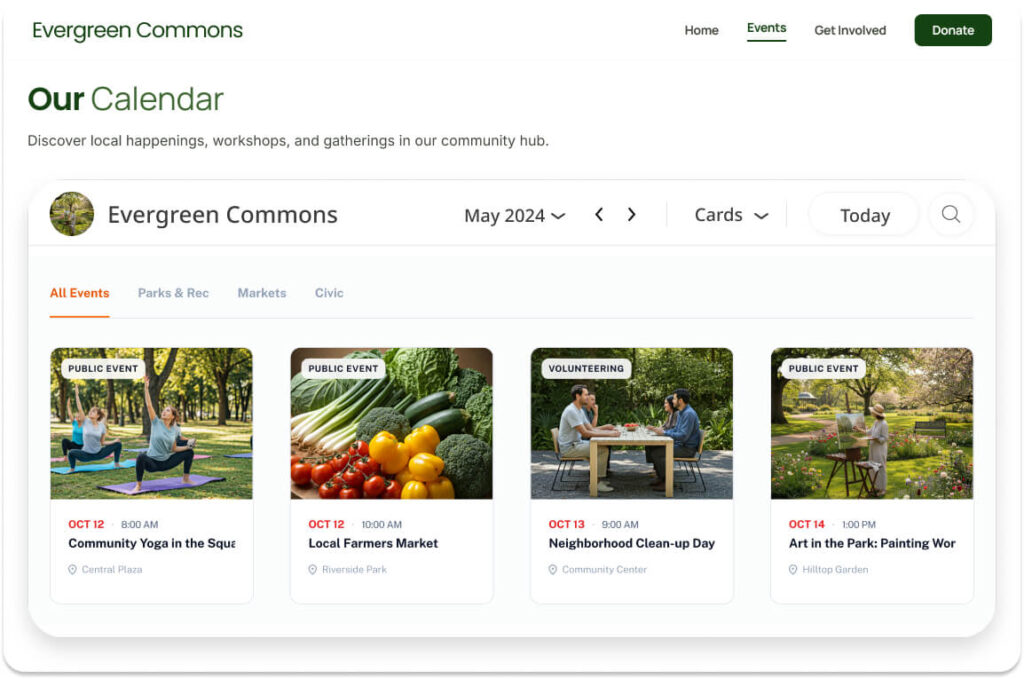
Card View showing multiple events with cover images
Perfect for Every Type of Group
For Families: Visual landmarks are highly accessible, especially for younger family members. While your calendar remains easy to read, children or non-readers can tap on an event and immediately recognize a school logo, a birthday cake, or a sports graphic, helping them understand the family schedule independently.
For Communities & Public Audiences: If you publish your community’s schedule online, presentation directly impacts engagement. When paired with GroupCal’s new website card-view embed, event cover images act as dynamic marketing assets. Instead of viewing a dry, text-only grid on your site, visitors browse a rich, media-driven event feed that encourages clicks and drives registration.
For Businesses & Teams: Make client deliveries, project milestones, or team-building sessions easily recognizable. When team members tap an event, seeing a custom graphic or client logo immediately establishes the meeting’s context and priority.
How to Use Event Cover Images
Adding a cover image is simple.
To add or update an image:
- Open the event.
- Tap the image icon in the upper-right corner of the event screen.
- Select a photo from your device or take a photo using the camera.
- Save the event.
If you would like to change the image, simply repeat the process and choose a new photo.
To remove an image, open the event and delete the existing cover image.
*Note: Cover images are synced in real-time. Once the event is saved, the cover photo will instantly update and display for all members of that shared calendar.
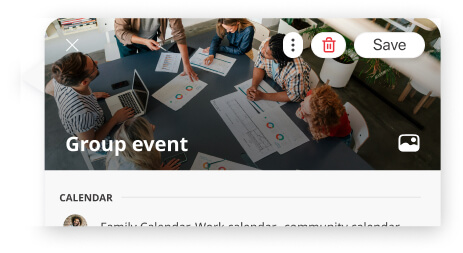
Event editing screen showing the image upload button
Monitor Your Photo Storage
To ensure optimal performance across the platform, photo attachments are managed with straightforward storage limits based on your subscription plan. In GroupCal, storage is tracked using an owner-based quota. This means photo usage is calculated only within the shared calendars you personally own. If you or any other calendar member adds a cover photo to an event in your calendar, that image counts toward your personal storage limit. GroupCal allows you to manage this quota transparently right from the app, making it easy to keep your calendars looking great while staying within your allotted space.
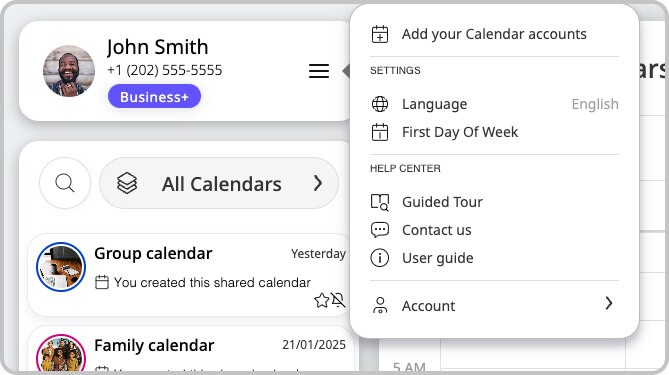
On the menu, under Storage, you can view:
- Your current photo usage.
- The number of photo attachments included with your plan.
- How many uploads are still available.
- Breakout of how many photos are attached in each of your calendars.
Your Events, Your Style
Event Cover Images bring personality and visual organization to your schedule.
Whether you’re coordinating a family, leading a sports team, managing a business, or organizing a community, images help members recognize events faster and create a more enjoyable scheduling experience.
Because every event tells a story, and now your calendar can show it.
Ready to make your events more visual?