


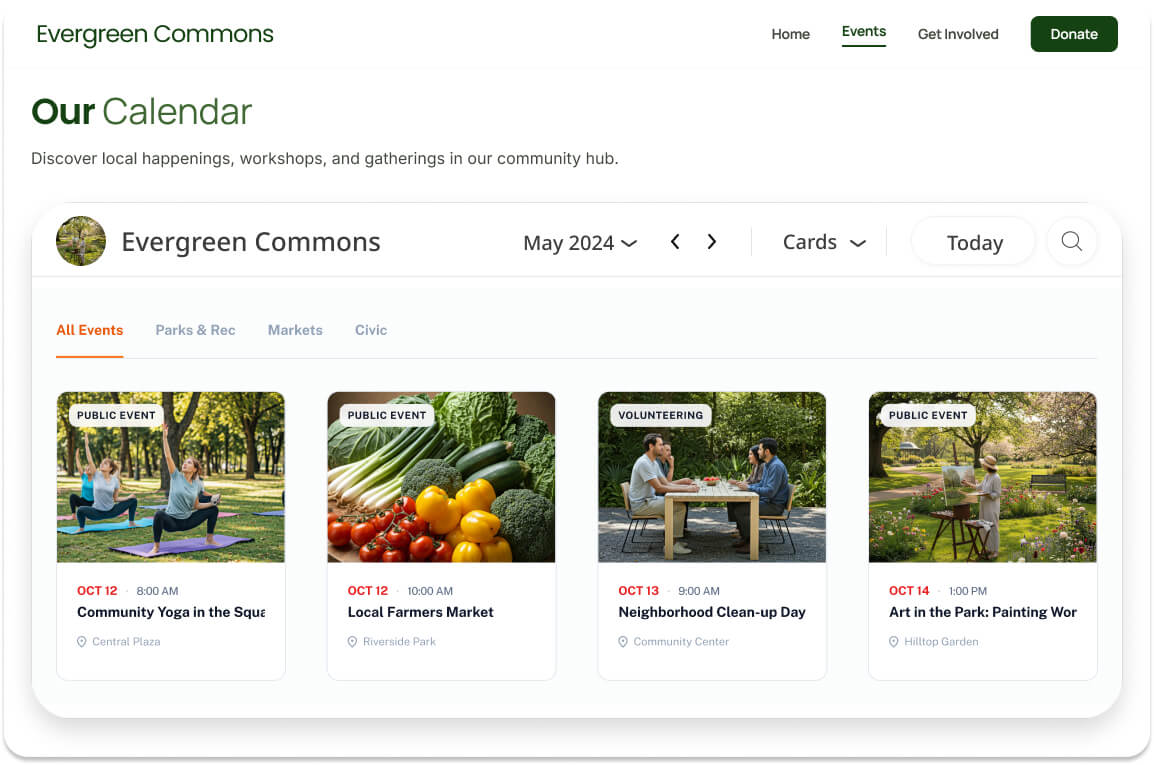
When keeping track of a busy schedule, traditional monthly or weekly grids are highly functional utility tools. They are designed for planning, when you already know your commitments and simply need to map out your day. However, when sharing schedules with a team, community, or public audience, scheduling is often about discovery. Your viewers aren’t just looking for an open time slot; they are deciding if they want to participate.
On most conventional calendar apps, the visual layout is restricted to dense text grids that require significant effort to scan. This limitation becomes even more apparent when you try to embed those same grids onto a modern, beautifully designed website, where they often look clunky, clinical, and completely out of place.
GroupCal is solving this aesthetic and functional gap with the introduction of Cards View, now available across all platforms – mobile, desktop, and web.
Whether you are browsing a shared calendar directly inside the GroupCal app, or embedding a public event directory on your website, Cards View transforms your schedule into a clean, modern, and highly visual event feed. It preserves the clean, high-density look of traditional grids for daily administrative planning, while offering an engaging, content-driven layout that makes event discovery effortless on any device.
What is Cards View? The Intersection of Scheduling and Web Design
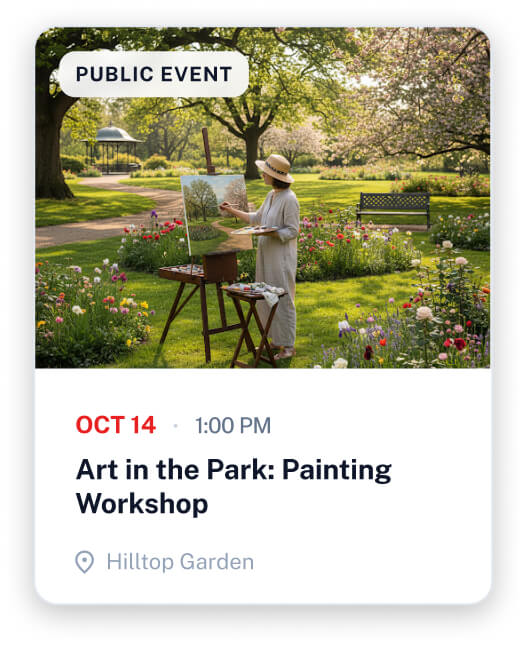
Cards View is a visual-first layout option that displays your GroupCal events as polished, responsive information cards. Based on modern web design principles, each card organizes the essential data points of an event into a clean, highly scannable vertical stack.
A Unified Visual Experience
A card-based layout reorganizes information so that it is intuitive for the human eye. By containerizing each event, GroupCal allows readers to browse through multiple schedules without feeling overwhelmed by crowded text. This mobile-friendly format adjusts automatically to fit mobile, tablet, and desktop screens natively.
Event Cover Photos as the Visual Header
When you attach an image to an event in GroupCal, the app allows you to scale and crop it directly within the interface so it displays perfectly. This image then serves as the header for your card, establishing immediate visual context for your viewers. If an event doesn’t have an individual cover image, GroupCal’s system automatically defaults to displaying the Calendar’s Photo instead, ensuring your layout remains complete and polished.
Clear Multi-Calendar Source Labels
GroupCal’s Cards View shines brightest when displaying events from multiple calendars on a single screen. To keep these schedules organized, each card displays its Calendar Name as a clean, colored tag on top of the cover photo. This tells the viewer exactly which calendar or category (e.g., “Volunteering” or “Public Event”) the event belongs to, turning a complex, multi-calendar dashboard into an easy-to-read directory.
Why the Standard Grid Fails Your Website Visitors: The Psychology of Browsing
To understand why Cards View is a superior choice for public websites, we must look at the cognitive difference between planning and browsing.
| Aspect | Traditional Calendar Grid | GroupCal Cards View |
| User Mindset | Planning: “I am already committed and need to find an open slot.” | Discovery: “I want to see what is happening and decide if I should attend.” |
| Cognitive Load | High: Eye must navigate multi-directional grids and read small text. | Low: Eye scans vertical cards with visual anchors. |
| Visual Priority | Dates & Time Blocks: Prioritizes chronological space over content. | Event Content: Prioritizes images and titles to drive interest. |
| Mobile UX | Poor: Hard to read month views on a small screen without zooming. | Native: Card stacks naturally adjust to vertical screens. |
When a casual visitor lands on your community or business website, they are in a browsing mindset. They are scrolling for compelling visual cues. Because humans process images significantly faster than text, a standard monthly grid can place too much cognitive load on the visitor, which may cause them to click away.
By replacing that grid with a visual Card View, you lower the barrier to entry. The cover images act as “visual anchors,” drawing the visitor’s eye directly to your offerings and making event discovery an effortless experience.
Tailored for Public Engagement: Which Groups Benefit Most?
While any public-facing shared calendar can benefit from this visual upgrade, the website Cards View is highly optimized for specific organizational ecosystems:
- Churches & Faith Communities: Showcase sermon series, youth group meetups, and volunteer schedules. The card layout allows visitors to quickly see what type of program is offered, making the congregation’s calendar look inviting and active.
- Educational Institutions & Student Clubs: Centralize academic deadlines alongside campus club events, workshops, and sports matches. Students can easily scan through the visual cards and click to subscribe to the schedules they care about.
- Local Businesses, Studios & Venues: Display upcoming fitness classes, theater performance times, workshop dates, or restaurant events. Cards View turns your calendar into a high-converting, professional booking directory.
- Neighborhood & Homeowner Associations (HOAs): Keep residents informed about community meetings, neighborhood cleanups, and block parties. Highlighting real-world photos of the community on the card headers promotes higher neighborhood involvement.
How to Implement and Customize
Deploying and optimizing the Cards View on your website is straightforward and requires zero coding.
Configuring Your Website Embed Settings
To display the card layout on your website:
- Open the Calendar Settings Screen of the calendar you want to share.
- Click on Embed this calendar in a webpage to open the customization panel.
- In the Default View dropdown menu, select Cards.
- Copy the generated iframe, WordPress, or Wix integration code and paste it directly into your website’s editor.
For more details, read our complete guide on Embedding a Calendar in your Website.
Design Best Practices for High-Impact Event Cards
To ensure your visual event directory looks professional and coherent, follow these three design principles:
- Optimize your event cover images: When uploading a cover photo, take advantage of GroupCal’s built-in editing tools to scale and position your image so it looks best on the card. Taking a second to frame the image properly ensures your card headers look crisp and professional.
- Leverage Your Calendar Profile Photo: Since events without a unique cover image will fall back to your calendar’s profile photo, ensure that your calendar’s primary image is a good visual representation of what the calendar stands for. This guarantees the grid remains on-brand at all times.
- Use clear, concise calendar names: Because the tags on your cards are automatically generated from your calendar names, keep those names short and descriptive (e.g., “Public Event” instead of “Official Neighborhood Public Event”). This keeps your tags clean and prevents them from cluttering the cover image. Select distinct, high-contrast calendar colors to make different categories instantly recognizable.
Choosing the Right GroupCal Plan for Your Website
We believe in keeping our product offerings and upgrade requirements clear and transparent:
- Free In-App Cards View: Switching your personal display to Cards View is completely free for all users directly inside the GroupCal mobile and desktop apps.
- Website Embed Integration: Because hosting and distributing highly visual, live-synced event feeds to public website audiences requires significant programmatic infrastructure and server bandwidth, the ability to embed the Cards View on a webpage requires our Business+ or Enterprise plan.
If your organization is looking to transform its website’s scheduling experience, upgrading the calendar owner to Business+ unlocks this premium embedding option immediately [125].
Conclusion: Turn Your Schedule into a Visual Destination
Your calendar shouldn’t look like an administrative spreadsheet. With GroupCal’s Cards View, your website’s schedule becomes a dynamic, visual asset that matches your brand, honors your design aesthetic, and actively encourages public engagement.
By utilizing visual anchors, prominent date tags, and a reliable layout fallback, you can confidently display your events in a way that respects your audience’s time and attention.
Ready to transform your website scheduling?
Open your GroupCal Web App to configure your embed settings.