


The Calendar Screen
GroupCal displays events on the calendar screen based on your selection on the Home Screen:
All Calendars View
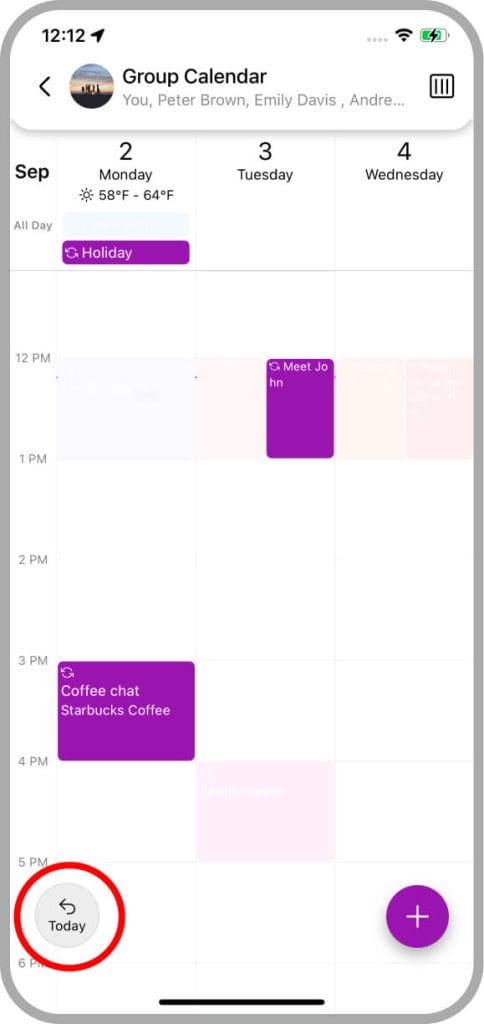
When you select the “All Calendars” option, events from all your calendars – including personal ones – are displayed together on the screen.
Specific Calendar View
If you select a specific calendar, only events from that calendar are fully visible. Events from other calendars appear dimmed by default, providing context to your overall schedule.
You can tap on any dimmed event to make all dimmed events fully visible for a few seconds.
Additionally, you can configure any calendar to hide events from other calendars by adjusting the settings in the calendar’s details screen.
Title of the calendar
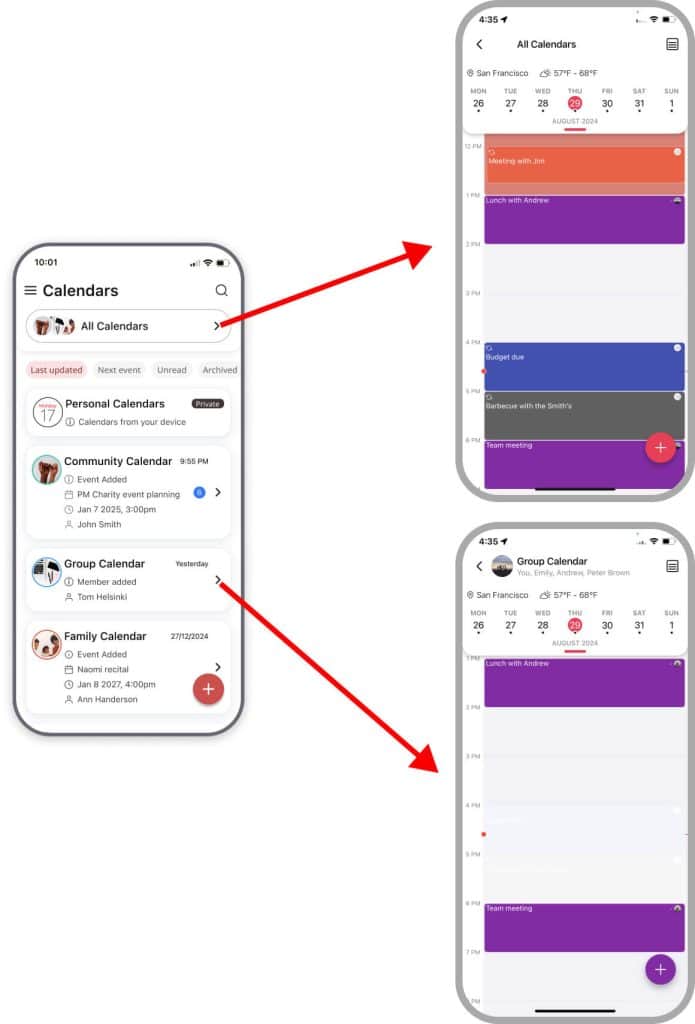
The title of each shared calendar screen will show the name of the calendar currently presented, and a list of its members below it. Tapping on the title opens the calendar information screen.
Calendar views
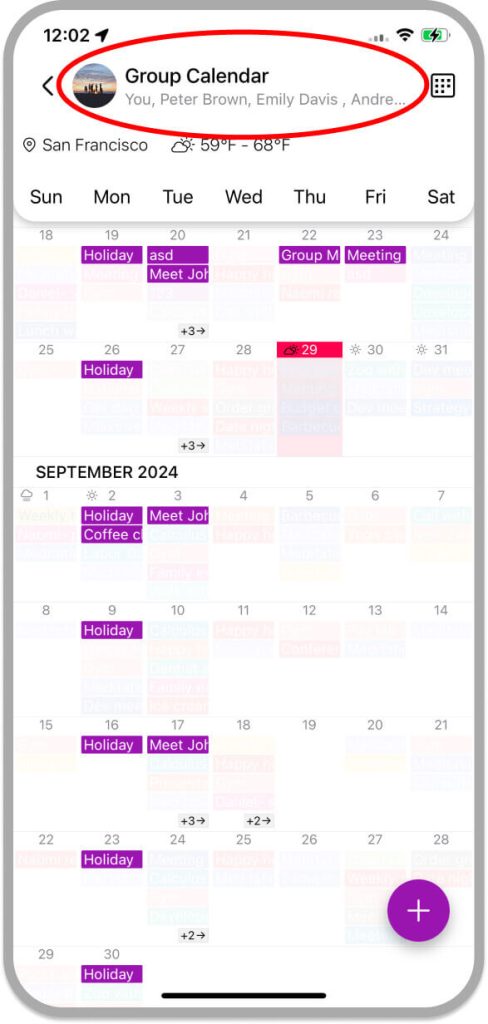
GroupCal allows you to choose which type of calendar view to use. The top bar of the calendar screen has a button that allows you to change the selected view.
Back to today button
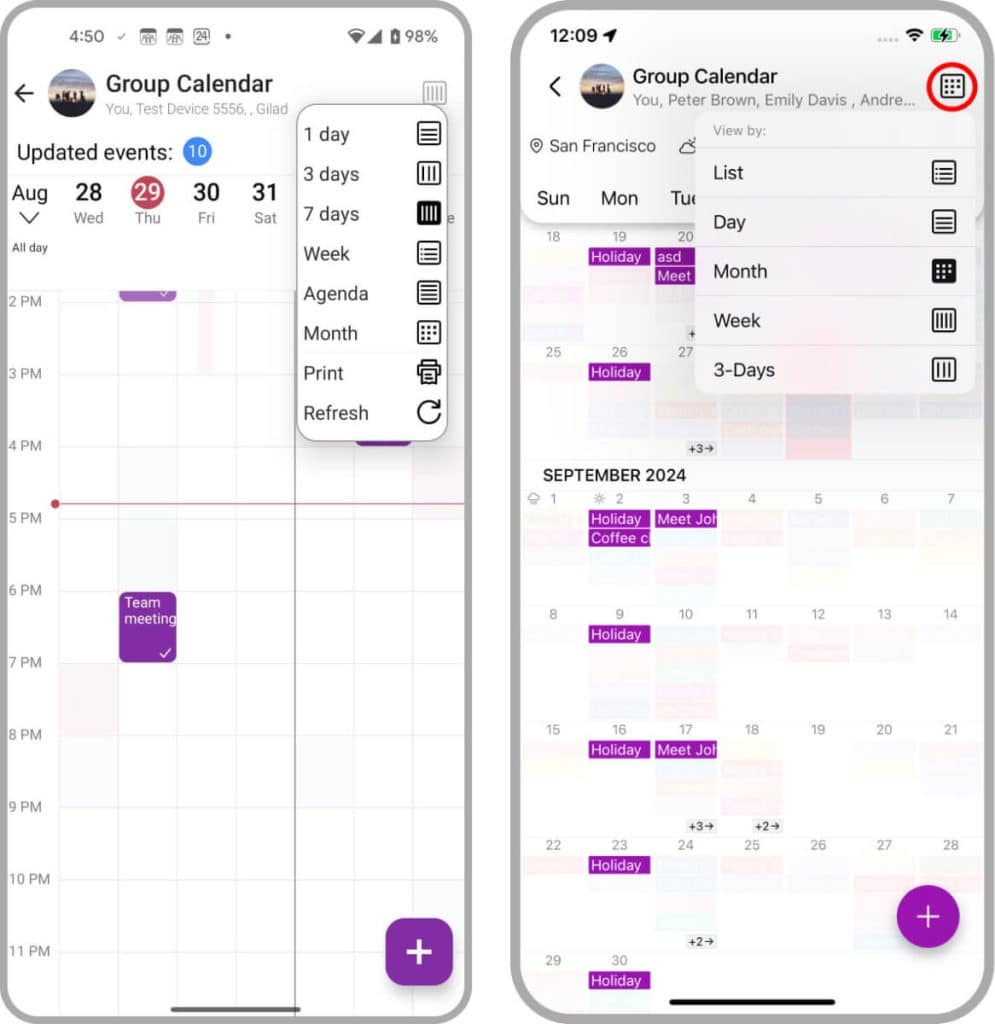
The “Back to Today” button conveniently appears as you scroll through different days in the calendar, offering a quick and effortless way to instantly return to the current day’s schedule.
Events
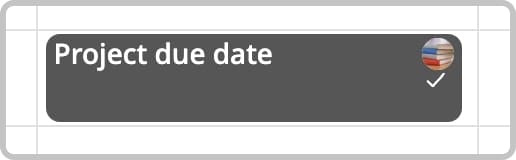
Events and Color-Coding
Color-Coding in Shared Calendars
Events in a shared calendar are color-coded based on the calendar’s assigned color, which helps users easily associate them with their respective calendars.
- Changing Calendar Color: You can change a calendar’s color, and all its events will update accordingly. This change can either be synchronized to all calendar members or kept for your device only. You can manage this from the Calendar details screen.
- Color Per Member: It is also possible to set a unique color for specific calendar members. Events owned by that member will display their designated color. If no member-specific color is set, the event will default to the calendar’s color.
Color-Coding in Personal Calendars
Events from personal calendar accounts (like Google, Outlook, or iCloud) adopt the color of their corresponding calendar account. For these events, you have the option to change the color of specific events from the Event Details popup.
Event photos
On the “All Calendar” screen, group photos are shown on top of events. For personal Calendar events, GroupCal attaches a special icon that indicates that the event is from your personal calendar. This allows users to easily associate events with their calendars.
Event status
Every event has a status which is indicated by a small icon.
| Icon | Status explanation |
 |
Event was saved and sent to all members. |
 |
Event received by all members. |
 |
All members sent a status update either by accepting, declining or sending “maybe”. This status is enabled only for events set to request members for confirmation. |
Add new events
There are multiple ways to add new events. You can read about this in Adding events.
