


The Menu
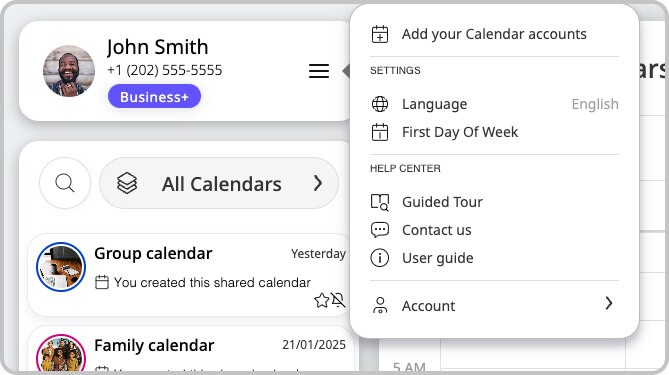
The Menu popup allows you access features that control how GroupCal behaves.
It is accessed by clicking on the Menu button on the Account section.
Options available on the settings popup:
Add your Calendar accounts
Connect your Personal calendar accounts such as Google, Outlook and iCloud, to GroupCal. You can connect multiple Calendar accounts. See more details in Add your Personal Calendar Account to GroupCal.
Language
The Language option determines the language used by the app and its interface. By default, GroupCal adopts the language used by your computer’s operating system.
First day of the week
The setting for the first day of the week affects the appearance of the calendar screen. GroupCal will position the first day of the week as the first column of the calendar view.
Default Calendar
The Default Calendar setting determines which of your shared or personal calendars is automatically selected as the destination when you create a new event (particularly from the “All Calendars” view). By designating a primary default, you can add events more efficiently without needing to manually choose a calendar for every new entry.
For a complete explanation of how this works and how to set it, see our dedicated guide on The Default Calendar.
Display mode
You can manually adjust the visual appearance of GroupCal to suit your environment or reduce eye strain. There are three options to choose from:
- System (Default): GroupCal automatically detects and matches your browser or operating system’s theme preferences. If your browser or device is in Dark mode, GroupCal will automatically launch with a dark theme.
- Light: Forces the app to remain in the classic light interface.
- Dark: Forces a high-contrast dark interface, ideal for low-light environments.
Storage
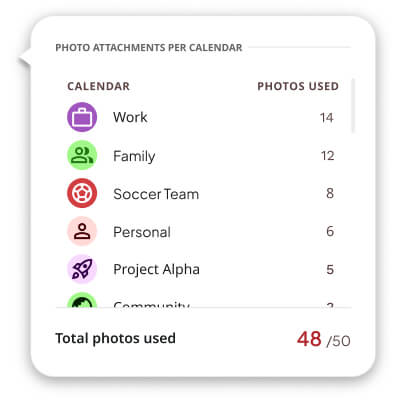
The Storage section provides a clear overview of your current photo attachment usage compared to the limits included in your active plan.
- Usage Progress Bar: Displays a visual summary of the exact number of event photo attachments you have already used and how many remain available under your quota.
- Granular Calendar Breakdown: Clicking on the Storage section opens a detailed menu showing a calendar-by-calendar breakdown. This list displays the precise number of photos stored in each calendar you own, allowing you to easily manage your data across different shared spaces.
Guided Tour
Activate a guided tour of the app which teaches about the main features and functionalities available.
Contact us
A convenient way to get in touch with the GroupCal support team. When clicking on this you are prompted to email the GroupCal team. If you have any questions, feedback, or need assistance with the app, you can use this feature to reach out to the support team and receive prompt assistance.
What’s new
Stay informed about the latest platform updates and capabilities. This option provides a dedicated feed of GroupCal’s recent announcements, release notes, and new feature introductions, ensuring you are always aware of new tools to improve your scheduling workflow.
User guide
Access our comprehensive library of step-by-step instructions and product documentation. This option opens the complete GroupCal guide, providing clear walkthroughs and visual aids to help you master all features, settings, and scheduling workflows.
Account – Log out
The Log out option in the settings popup allows you to securely log out of your GroupCal account. By clicking on this option, you will be signed out of the app, and your session will be terminated. This is useful when you want to switch to a different account or if you no longer need to access GroupCal. Logging out ensures the privacy and security of your account information.
Account – Delete account
This option allows you to permanently delete the account and all its related data.
