


How to Manage Your Calendar Settings – The Calendar Details Screen
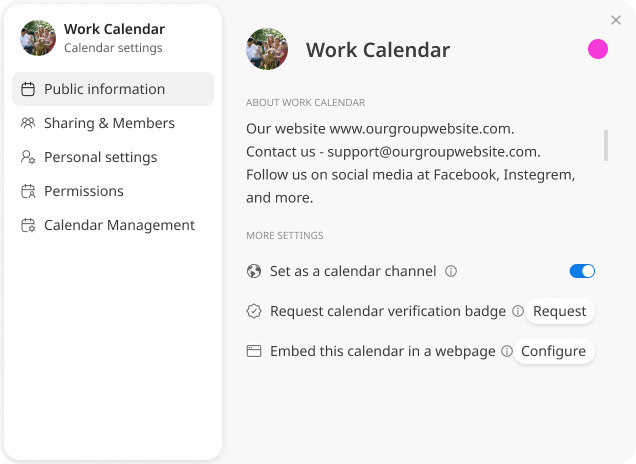
The calendar settings screen in GroupCal allows you to customize various properties of your calendars, such as their name, color, permissions, description, and more.
In this article, we will explore the details of the calendar settings screen, providing comprehensive information and instructions on how to utilize this powerful tool. You will discover the range of features and customization options available, empowering you to effectively manage and personalize your calendars in GroupCal.
How to open the Calendar Details popup?
You can open the calendar details popup in two ways:
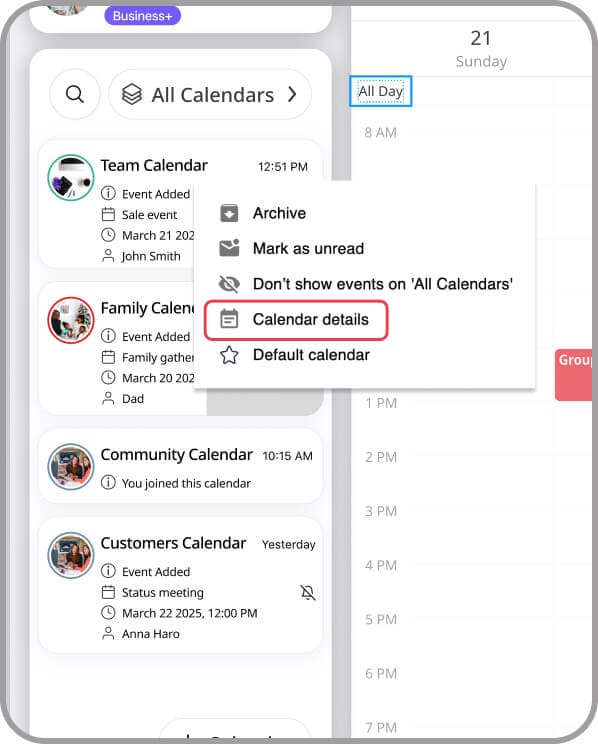
- On the Calendars List section on the main screen, right click on any calendar and on the popup that opens select Calendar Details.
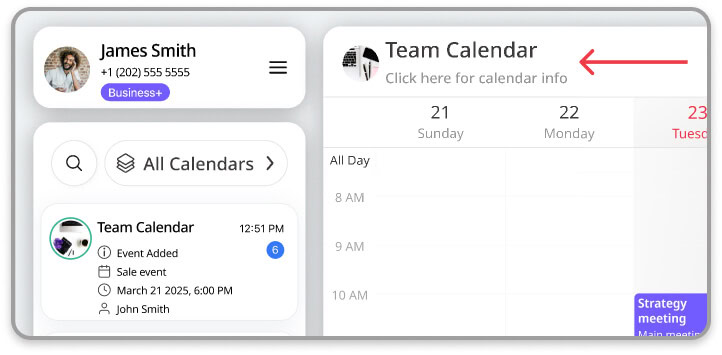
- Open the calendar screen of any of the calendars, and then click on the title of that calendar.
Calendar Settings – Public Information Menu
The Public Information menu of the calendar settings screen, allow to control all the public related information of the calendar.
Title
Click on the title to edit it. The title can be up to 25 characters long.
The title can only be edited if you have the permission to do so, since some calendars are set to restrict such edit.
Photo
Next to the title you can also add a photo that will appear next to the title of the calendar. Similarly to the title, the photo as well can only be edited if you have the permission to do so.
The calendar photo is used to mark which events are associated with it.
Color
Next to the title you can also change the color of the calendar. Similarly to the title and photo, the color as well can only be edited if you have the permission to do so.
The color of the calendar is presented on the Calendar List section on the main screen, and is used as the default background color of events that belong to that calendar both inside the app, and also when the calendar is publicly presented on websites and when it is opened from a link. Read more about events color.
Members of the calendar can choose to change the calendar color on their own devices overriding the calendar color set by the owner of the calendar.
Calendar Description
Allows to write a description of the calendar that will appear under the title. The description can include details about a business, relevant links to a website or social networks, etc. All members of the calendar can view the description.
This Public Information menu also allows to take actions relevant for the public appearance and behavior of the calendar:
Set as calendar channel
Calendar channels are shared calendars in GroupCal that are set as channels, and therefore have additional features which are better suited for calendars that are public and shared with a large audience.
Only an admin of the calendar can change its status to a channel
Calendar verification badge
Calendars that have a verification badge communicate trustworthiness and authenticity. This button initiates the process to request such a verification badge.
Embed this calendar in a web page
Opens another dialog that provides code to embed the calendar on a web page.
Embedding a calendar in a web page can be done only in case there is an active link to that calendar (see the Sharing & Members menu for details).
Calendar Settings – Sharing & Members Menu
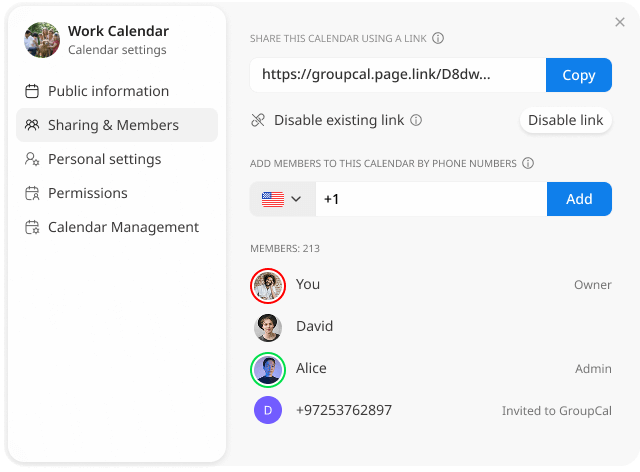
The Sharing & Members menu is your central hub for managing your calendar’s members, controlling access, and assigning key roles.
Inviting New Members
You have two simple, low-friction methods to bring new members into your calendar:
- Shareable Link: Use the provided link to instantly invite anyone. This is ideal for quickly onboarding large groups, communities, or audiences.
Note: The link is only shown if your current calendar settings allow members to join this way. If a link isn’t available, you can create one, depending on whether you are set as a calendar admin (see the Permissions section). - Direct Phone Invitation: Invite people directly using their phone numbers (in the mobile app, you will be able to select contacts from your contact list).
- If the contact already uses GroupCal, the calendar appears in their app immediately.
- If they are new to GroupCal, the system sends an SMS invitation link for them to install the app and join the calendar in one simple step.
Calendar Member List and Visual Cues
The section lists all members currently joined to the calendar.
- Privacy for Channels: For Calendar Channels (public broadcast calendars), the member list is visible only to calendar administrators, ensuring the privacy of your follower base.
- Role Identification: Each member’s role is clearly indicated next to their name.
- Visual Color-Coding: If an Admin has assigned a color to a member, that color is shown as an outline around their profile photo for quick, at-a-glance identification across your calendar view.
Administrative Actions on Members
As an Owner or Admin, clicking on a member’s name allows you to perform several critical actions:
| Action | Function and Impact |
| Assign Color | Sets the display color for the member. Events owned by this member will use this color for their background, enhancing clarity. |
| Make Admin | Promotes the member to the Calendar Admin role, granting them full control over content and settings. |
| Remove from Calendar | The member’s access is revoked. The calendar remains on their device, but it will no longer receive new events or real-time updates. |
| Transfer Calendar Ownership | (Owner Only Action) Permanently transfers the Calendar Owner role to another member. This action is irreversible. The original owner immediately loses their owner and admin privileges. |
Calendar Member Roles and Privileges
GroupCal utilizes three distinct roles to manage access and control within a calendar:
| Role | Access and Privileges | Key Limitations |
| Calendar Owner | Holds the highest level of access and control over the calendar. | Cannot be removed from the calendar. |
| Calendar Admin | Has full control over the calendar’s content and settings. Can perform high-level actions, such as converting the calendar to a Channel, and requesting a verification badge for it. | Can be removed from the calendar by another Admin or the Owner. |
| Calendar Member | The base role. Can view all events on the calendar. | Their ability to add new events, edit existing content, or invite new people is determined exclusively by the custom permissions set by the Admins (see the permissions menu for details). |
Calendar Settings – Personal Settings Menu
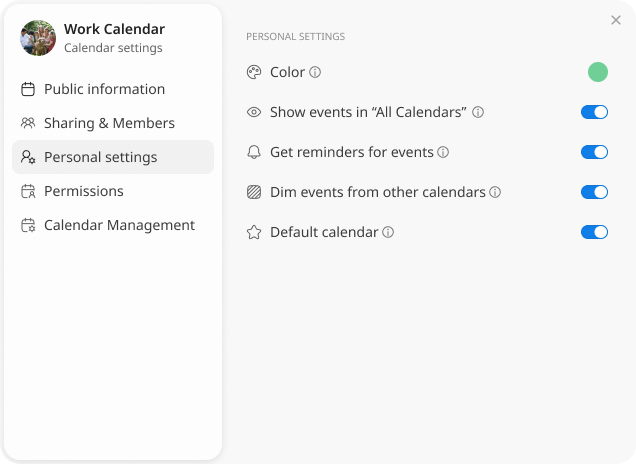
This menu allows each calendar member to set their own personal settings for the calendar.
Color
You can choose to customize the color of events in the calendar on your device. This color overrides the calendar color set by the owner of the calendar. The color of the calendar is presented on the Calendar List section on the main screen, and is used as the default background color of events that belong to that calendar. Read more about events color.
Show events in ‘All Calendars’
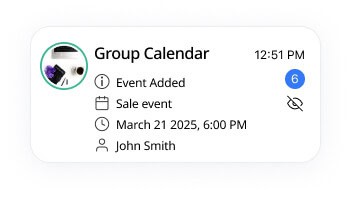
By toggling this setting off, you determine that the events of this calendar are not shown in the “All Calendars” screen. This option is available to allow you to keep the ‘All Calendars’ screen only with events that are important for you to see on a regular basis. Calendars that are less important can be set not to show their events on the ‘All Calendars’ screen and can be viewed by directly clicking on them on the Calendar List section.
On the Calendar List section, the calendar will have a special indication.
Get reminders for events
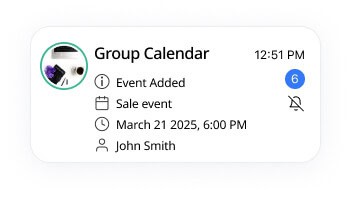
You have the option to turn on or off event reminders for specific calendars, ensuring that you get reminders only for events that are important for you. On the Calendar List section, the calendar will have a special indication in case reminders are turned off for it.
Show events from other calendars as dimmed
If you select a specific calendar, only events from that calendar are fully visible. Events from other calendars appear dimmed by default, providing context to your overall schedule.
You can tap on any dimmed event to make all dimmed events fully visible for a few seconds.
Use this setting to configure any calendar with whether to hide events from other calendars or otherwise to show them as dimmed.
Default Calendar
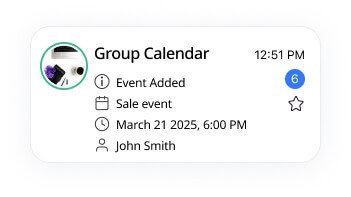
You can set the calendar as the default calendar. On the Calendar List section, the calendar will have a special indication to indicate that it’s the default calendar. Read more about the Default Calendar in GroupCal.
Show only events you own
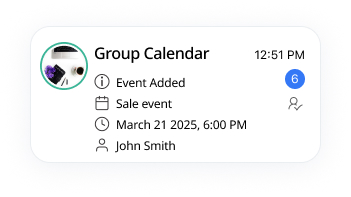
When enabling this option, the calendar screen will show only events you are the owner of. On the Calendar List section, the calendar will have a special indication to indicate that it’s showing only events you own.
Permissions Menu
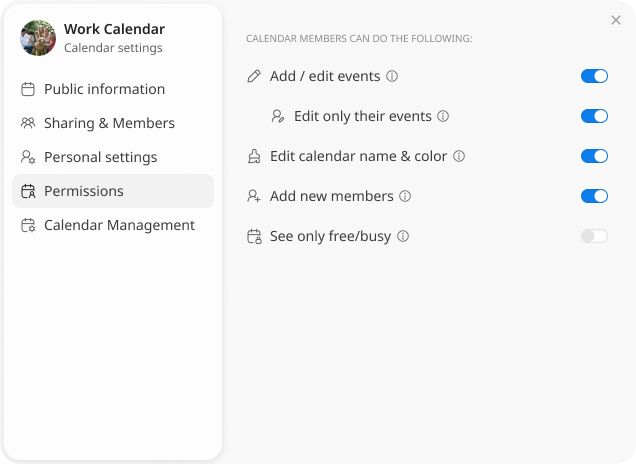
This menu allows calendar admins to set the permissions of the calendar which affects the access level of the calendar members.
It is only presented if you are an admin of the calendar.
The available options are:
- Add / edit events
- Edit calendar name and photo
- Edit their own events only.
- Add new members
- See only free/busy
Read more details about permissions in GroupCal.
Actions that you can take on members
Admins can click on members and take actions relevant to the member they clicked on.
- Assign color – when a color is assigned to a member, events owned by that member will have the background color assigned to the member.
- Make admin – the member becomes an admin.
- Remove from calendar – the member will be removed from the calendar. The calendar will stay on his devices with all its events, but new updates are not synced.
- Transfer calendar ownership – owners of a calendar can transfer the ownership over the calendar to another member. Once done, the existing owner loses his owner and admin privileges. This action is irreversible. The new owner can decide whether to assign an admin role to the previous owner (or to any other member).
Calendar Management Menu
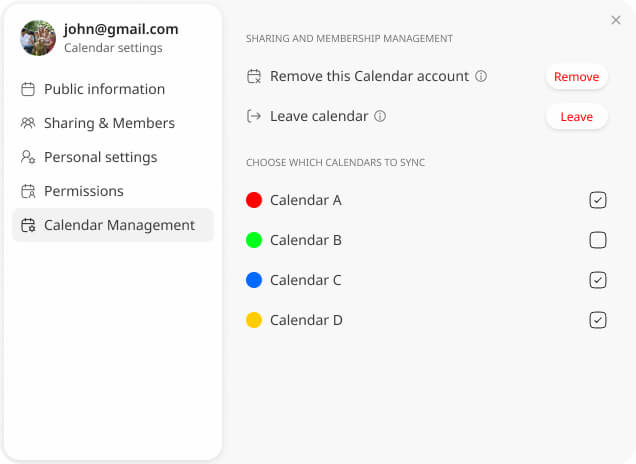
This section includes other general calendar management options.
Leave calendar
If you are not the owner of the shared calendar, you have the option to leave the calendar. Once you do that, it will remain on your screen, but you will stop getting updates about it.
Remove this calendar account
For Personal calendar accounts you added to GroupCal (such as your Google, Outlook and iCloud calendars), you can remove them from the app entirely.
Choose which calendars to sync
For personal calendar accounts only, this section allows you to choose which of their calendars to sync into GroupCal. In case you share that calendar with others, only the calendar you set to sync will be synced.
